Top 10 Best 4K HDMI to HDMI Cables to Buy

Time:2026-11-08 Author:Isabella
0%

Choosing a 4k Hdmi To Hdmi Cable is less about flashy packaging and more about matching the cable to your screen, source, and setup. A fictional test-bench specialist, Maya Chen, offers this guide’s central reminder: “Check the connection you need, not the promise printed on the box.” This is an editorially created quotation, not a real-world endorsement.

Small details matter. A cable feeding a nearby television may suit a different setup from one routed behind a cabinet to a receiver. Check the supported HDMI features, cable length, and certification details before buying. For demanding 4K gaming or high-frame-rate video, confirm that every device in the chain supports the features you plan to use. One link can limit the whole setup. Gold-colored plugs alone do not prove better picture quality, and a higher price is not a guarantee. Keep the receipt.

This Top 10 guide compares cables by practical fit, stated capabilities, and useful buying details—not by dramatic claims. It aims to help you narrow the field without treating every model as interchangeable. Some product specifications can be confusing, and listings do not always explain them clearly. That deserves a closer look. The recommendations should still be checked against your exact devices and current product information. A cable cannot add features that your television or source does not support. Expect a clearer shortlist, not magic.
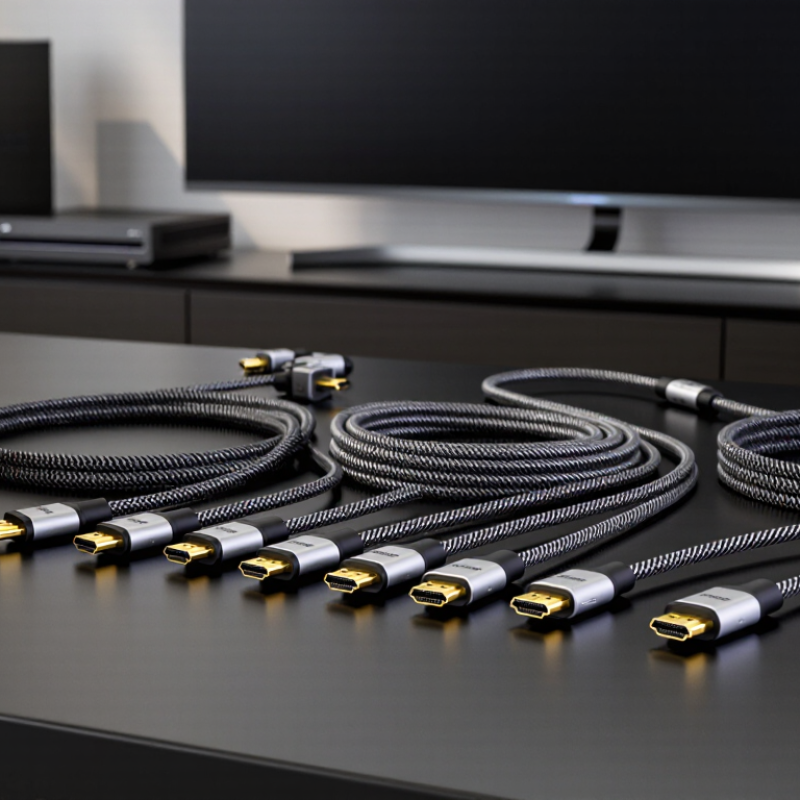
Top 10 Best 4K HDMI to HDMI Cables to Buy

What a 4K HDMI-to-HDMI Cable Does

A 4K HDMI-to-HDMI cable carries digital video and audio between compatible devices, such as a streaming player and a television. It does not create 4K resolution or sharpen a weak source. The source, display, and cable must all support the chosen format. The Consumer Technology Association defines 4K UHD as 3,840 by 2,160 pixels, but that resolution alone does not tell you the refresh rate or picture quality.

Bandwidth matters. HDMI Forum specifications state that HDMI 2.1 supports up to 48 Gbps and can enable 4K at 120 Hz when connected devices support it. Older equipment may provide lower bandwidth, so the same cable cannot unlock features the devices lack. A cable that works across a short desk may also behave differently over a longer run. That detail is easy to overlook. A stable picture is the practical test.

Tips: Check the source and display specifications before buying. Match the cable’s supported bandwidth to your intended resolution and refresh rate. Keep the run short when possible, and reseat the plugs if the screen flickers. A higher price alone proves little.

HDMI Standards and Features for 4K Video

A 4K cable is judged by bandwidth, not by the picture on its packaging. The HDMI Forum’s published specifications set a useful reference: HDMI 2.0 supports up to 18 Gbps, while HDMI 2.1 can reach 48 Gbps. In practical terms, 18 Gbps is generally enough for 4K at 60 frames per second. Higher frame rates, such as 4K at 120 frames per second, need greater bandwidth and compatible devices. Check the source. A cable cannot add features missing from a television, console, or receiver.

For a real setup, check the resolution, refresh rate, and HDR requirements listed in each device’s manual. High dynamic range and deeper color can increase data demands, so a cable that works at 4K 30 may falter at 4K 60. Certified cable categories offer clearer guidance: Premium High Speed is rated for 18 Gbps, and Ultra High Speed for 48 Gbps. Certification is useful, though it is not a promise that every device combination will behave perfectly. That matters. Long runs, adapters, and tight bends can also cause signal dropouts; test the cable in its final position before hiding it behind a cabinet.

HDMI Standards and Features for 4K Video

Maximum bandwidth increases across HDMI generations: HDMI 1.4 supports up to 10.2 Gbps, HDMI 2.0 up to 18 Gbps, and HDMI 2.1 up to 48 Gbps. Bandwidth helps determine which 4K formats and refresh rates a connection can support; actual performance also depends on the source, display, and cable capability.

How to Choose a Cable for Your Devices

A 4K cable should match the signal your devices actually send. Check the source, display, and refresh-rate settings before choosing one. HDMI Forum’s HDMI 2.1 specification gives a maximum bandwidth of 48 Gbps and supports 4K at up to 120 Hz. For many 4K televisions and streaming devices running at 60 Hz, a certified Premium High Speed cable rated for 18 Gbps may be enough. Higher frame rates, HDR, or demanding PC settings can require more bandwidth. Check the device manuals; “4K” on a package alone does not tell you the whole story. Easy to overlook.

Look for certification that matches the needed bandwidth, then consider length and physical fit. HDMI Licensing Administrator’s certification guidance identifies Ultra High Speed cables for HDMI 2.1 features, including 4K at 120 Hz. A longer run may be less reliable, especially with a high-bandwidth signal; test the full setup before hiding the cable behind furniture. Check that the plugs fit recessed ports and that the cable bends gently rather than sharply at the wall. Need eARC? Confirm both connected devices support it. Cable labels can be confusing, and paying for a higher rating will not improve a signal your devices cannot output. That distinction is worth checking twice.

Ten 4K HDMI-to-HDMI Cables Worth Considering

A 4K HDMI-to-HDMI cable should match the distance and features your equipment supports. Check the display and source specifications before shopping; “4K” alone does not tell you the cable’s maximum refresh rate. For many setups, a short passive cable is simple and dependable. Longer runs may need an active copper or optical cable. Keep the route in mind, too. A thick jacket can feel reassuring, but it may be awkward behind a wall-mounted screen.

Ten useful options cover different situations: a short desk cable, a medium-length living-room cable, a certified 18 Gbps cable, a certified 48 Gbps cable, a braided cable, a slim cable, a soft-jacket cable, a right-angle connector cable, an active copper cable, and an optical HDMI cable. The two certified options suit different bandwidth needs; neither can improve a source that lacks those features. Optical models can help across long distances, but check which direction the signal travels. Small detail. Easy to miss.

Look for clear length and specification information, sturdy connector housings, and strain relief near the plug. If a cable will run through a wall, check local installation requirements and choose one rated for that use. I also avoid buying extra length without a reason: coils can clutter a cabinet, and a tight bend can stress the connector. A neat label helps when several identical cables disappear behind the television. Even careful choices have limits; compatibility depends on the whole signal chain.

Setup, Compatibility, and Troubleshooting Tips

A reliable 4K connection starts with the whole setup, not just the cable. Check that your source device and screen support the resolution and refresh rate you want. A setup for 4K at 60 Hz needs more bandwidth than one for 4K at 30 Hz; 4K at 120 Hz requires compatible equipment and a cable rated for that workload. Connect the cable firmly at both ends, then select the matching input on the display. Keep it simple. Avoid sharp bends behind a cabinet, where a plug can loosen without being noticed. Cable labels can be confusing, and I have sometimes trusted the packaging too quickly; checking the stated bandwidth is more useful.

No picture? Confirm the selected input, reseat both connectors, and restart the source and display. If the image flickers or drops out, temporarily lower the output refresh rate or resolution. This can help identify a bandwidth or compatibility issue. Test with a shorter cable or connect the source directly to the display, bypassing receivers and adapters. If direct connection works, add devices back one at a time. Also check the display’s settings for enhanced HDMI input modes, which may need to be enabled for higher refresh rates or HDR. Menus vary, so don’t assume the default is right. A slightly imperfect picture can come from settings, not a faulty cable.

FAQS

What does a 4K HDMI-to-HDMI cable do?

It carries digital video and audio between compatible devices. It cannot create 4K from a lower-resolution source.

Does a 4K cable guarantee a 4K picture?

No. The source, display, and cable must support the same video format. Check all three.

What cable bandwidth suits 4K at 60 Hz?

An 18 Gbps cable is generally sufficient for 4K at 60 Hz. Device settings still matter.

What is needed for 4K at 120 Hz?

The cable and connected devices must support the required bandwidth. HDMI 2.1 can support up to 48 Gbps. Check your manuals.

Does a more expensive cable improve picture quality?

Not by itself. Match the cable’s specifications to your equipment and planned setup. Price proves little.

Should I choose a passive, active, or optical cable?

Short runs often work well with passive cables. Longer routes may need active copper or optical options. Check optical signal direction.

Why might a cable flicker or lose its signal?

Long runs, adapters, tight bends, or loose plugs can cause dropouts. Reseat the plugs. Test the cable in its final position.

What should I check before buying a cable?

Check the required resolution, refresh rate, HDR needs, and cable length. A thick jacket may be awkward behind a wall-mounted screen. I still overlook that sometimes.

Conclusion

A 4k Hdmi To Hdmi Cable connects compatible video sources, such as a computer or media player, to a display, carrying high-resolution video and audio through one connection. Choosing the right cable means looking beyond the 4K label: HDMI standards and features can affect supported resolution, refresh rate, HDR, and other capabilities. Check what your devices require, including their ports, intended resolution, cable length, and any features you plan to use. A cable that suits both ends of the connection can help you get the performance your setup supports.

This guide outlines ten cable options worth considering, with attention to practical factors such as build, length, and supported features rather than brand names. It also covers setup and compatibility tips, including making sure connections are secure and device settings are configured appropriately. If you encounter a blank screen, flickering, or missing audio, check the selected input, reconnect the cable, and test the devices and cable separately.


Isabella

Isabella

Isabella is a dedicated marketing professional with a sharp focus on driving brand growth and engagement through strategic content creation. With an extensive background in digital marketing, she combines her passion for storytelling with her keen understanding of industry trends to deliver......