Choosing the best 4k Hdmi Cable in 2026 starts with matching the cable to your actual equipment, not the largest number printed on its packaging. A 4K television, game console, streaming device, and soundbar may use different resolutions, refresh rates, and audio features. Those details determine the bandwidth your setup needs. A cable that works perfectly for 4K at 60Hz may not handle 4K at 120Hz.
The HDMI Forum’s HDMI 2.1 specification defines bandwidth of up to 48Gbps and supports features including 4K at 120Hz. That figure is a useful technical reference, not a promise that every cable marked “4K” supports those features. HDMI Licensing Administrator certification provides another practical check: its Ultra High Speed HDMI Cable program verifies cables against the relevant performance requirements. Still, labels can be confusing. Not every setup needs maximum bandwidth.
Picture a console connected across a living-room cabinet, with the cable bent behind the television. Length, connector fit, and reliable certification matter alongside headline speed. For shorter runs, an appropriately certified cable may be all you need; longer runs deserve extra care because signal reliability can vary by design and installation. Check the exact output settings in your device manuals, then compare them with the cable’s stated capabilities. This guide will help you assess bandwidth, certification, length, and build quality without paying for features your equipment cannot use. One detail is easy to overlook: the “best” cable is the one that works consistently in your room, not necessarily the most expensive one.
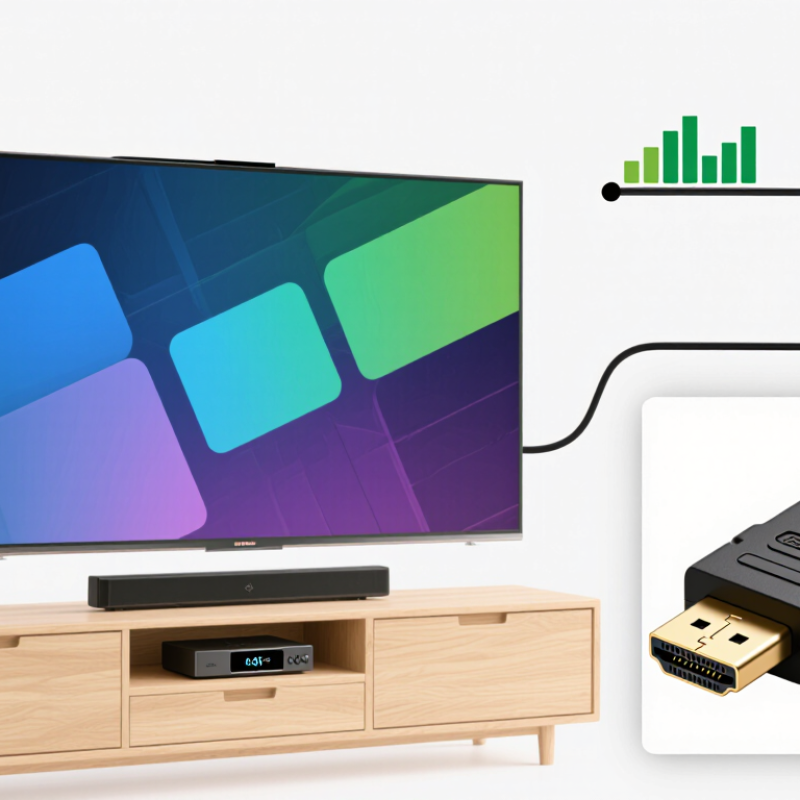
Before choosing a cable, check what your devices actually need. A 4K television may show 4K at 60 Hz, while a gaming console or PC may target 120 Hz. That difference matters. Higher refresh rates require more data, especially when paired with HDR, which carries expanded color and brightness information.
For many streaming setups, 4K at 60 Hz with HDR is sufficient. A Premium High Speed HDMI cable can support many such formats, depending on the exact video settings. For 4K at 120 Hz, look for a certified Ultra High Speed cable, rated for up to 48 Gbps. Check the source and display specifications, too; both must support the format. Color depth and chroma settings can raise bandwidth demands. Small details count.
It is easy to buy more cable than your setup needs. I would still verify the port capabilities and the device’s output menu before deciding. A “4K” label alone does not confirm support for 120 Hz or HDR. For longer cable runs, choose a certified option and test it with your actual equipment. Look for dropouts, flickering, or brief black screens during demanding scenes. No visible problem? Then a costlier cable may offer no practical improvement.
Start with bandwidth, not the cable’s packaging. HDMI 2.0 supports up to 18 Gb/s, enough for many 4K displays at 60 Hz. HDMI Forum’s HDMI 2.1 specification raises the ceiling to 48 Gb/s, enabling higher-bandwidth formats such as 4K at 120 Hz. Actual performance depends on the source, display, color depth, and video settings. A 120 Hz screen cannot create a 120 Hz signal from a 60 Hz source.
Cable category matters more than a version number printed on a listing. HDMI Licensing Administrator certification guidance specifies that Premium High Speed cables are tested for up to 18 Gb/s, while Ultra High Speed cables are tested for up to 48 Gb/s. Those figures help match a cable to a 4K gaming setup or a high-refresh-rate display. Look for certification, especially on longer runs. Features such as variable refresh rate and enhanced audio return channel also require compatible connected devices. A cable alone cannot add them.
More bandwidth is not automatically better. For a 4K television used mainly for films at 60 Hz, a certified 18 Gb/s cable may be sufficient. For a 4K/120 Hz console, choose a certified 48 Gb/s cable. It is easy to overfocus on labels; the precise signal your devices use is the detail worth checking.
Measure the full route, not just the distance between devices. Include the rise behind a cabinet, the path around a desk, and a little slack for moving equipment. Too much slack can be awkward, though; I have sometimes allowed more than the setup really needed. Keep bends broad, especially where the cable enters a wall or cabinet. A tight bend can strain the connector.
For a short, accessible run, a suitable passive HDMI cable is often the simplest choice. Longer distances may call for an active copper or optical cable, but check its supported resolution, refresh rate, and HDR capability against both devices. Test the complete setup before hiding the cable. That step is easy to skip. For an in-wall installation, choose a cable rated for that use and follow applicable local installation requirements. Optical cables can be directional, so match the source and display ends before pulling them through a conduit. If the route is cramped, a removable conduit can make future replacement much less frustrating.
How to Choose the Best 4K HDMI Cable in 2026? Check Certification, Build Quality, and Connector Design
Certification is a useful starting point, not a decorative label. HDMI Licensing Administrator’s Ultra High Speed Cable program requires certified models to pass testing for the stated performance level. Check the product’s certification label or QR code rather than trusting vague claims such as “8K ready.” HDMI Forum’s HDMI 2.1 specification defines bandwidth up to 48 Gbps, supporting demanding formats such as 4K at 120 Hz when the connected devices also support them. A cable cannot add features your display or source lacks.
Build quality matters most where the cable bends or gets pulled. Look for a flexible jacket, secure strain relief, and connectors that sit firmly without wobbling. Gold-colored contacts do not guarantee better picture quality. Connector shape matters, too: a low-profile plug may fit behind a wall-mounted television, while an angled adapter can ease tight routing. But extra adapters add connection points, so keep the path simple. A heavier cable is not automatically more durable; I would still inspect how the plug meets the cable.
Tips: Measure the route before buying, including space behind the screen. For long runs, verify that the exact cable length is certified for your required signal. Keep the receipt and test the cable at your intended resolution and refresh rate. It’s easy to overlook that last step.
| What to Compare | What to Look For | Useful Facts | Practical Buying Check |
|---|---|---|---|
| Cable certification | Choose a certified cable category that matches the required video bandwidth. | Premium High Speed HDMI Cables are tested for up to 18 Gbps. Ultra High Speed HDMI Cables are tested for up to 48 Gbps. | Check for the applicable official certification label and verify its QR code with the HDMI Cable Certification app where available. |
| Resolution and refresh rate | Match the cable to the display, source device, and intended settings. | An 18 Gbps Premium High Speed cable can support many 4K at 60 Hz setups. 4K at 120 Hz generally calls for an Ultra High Speed cable and compatible devices. | Confirm the source and display support the same resolution, refresh rate, color format, and features; the cable alone cannot add unsupported capabilities. |
| HDR and color settings | Consider color depth and chroma format as well as resolution. | Higher refresh rates, greater color depth, and full-chroma signals can require more bandwidth than lower-bandwidth 4K modes. | For HDR or high-refresh gaming, check the device manuals and choose a certified cable with enough bandwidth for the complete signal format. |
| Cable length and signal type | Use the shortest practical cable; assess longer runs more carefully. | Signal reliability depends on cable design and installation. Long or demanding runs may use active cables, which can have directionality or power requirements. | Check for source and display labels on active cables, follow installation instructions, and test the cable at the intended settings before securing it in place. |
| Build quality | Look for secure strain relief, neat molding, and a jacket suited to the installation. | A sturdy exterior can help resist everyday handling, but appearance alone does not confirm bandwidth or certification. | Avoid sharp bends, crushing, and excessive tension. Check the specified bend guidance and installation conditions when provided. |
| Connector design | Select the connector type and shape that fit the ports and available space. | Standard HDMI Type A connectors are common on TVs, monitors, and many source devices. Smaller HDMI connector types are used on some devices. | Check both device ports and clearance around them. Right-angle connectors can help in tight spaces but must point in the correct direction. |
| Feature compatibility | Confirm support for any required HDMI features in the entire connection. | Features such as eARC, variable refresh rate, and auto low latency mode also depend on compatible source and display ports and settings. | Consult device specifications and connect to the ports designated for the required feature. |
| Final selection | Prioritize verified certification, suitable bandwidth, and a fit for the installation. | A higher-priced or thicker cable is not automatically better; performance claims and certification are more useful than appearance alone. | Choose the least complicated cable that meets the required signal, length, connector, and feature needs. |
Before buying a 4K HDMI cable, check what each device actually supports. Read the television, console, and receiver manuals for resolution, refresh rate, HDR, and audio features. A 4K label alone says little about performance. A 4K/60 Hz television has different needs from a 4K/120 Hz display. Small detail, big difference. The HDMI Forum’s HDMI 2.1 specification supports bandwidth up to 48 Gbps and features such as 4K at 120 Hz. Your devices must support the feature too; a capable cable cannot add missing ports or processing.
Check the connection path, not just the cable. If a receiver sits between a console and television, verify that all three devices support the desired signal. For longer runs, confirm the cable’s stated capability at that length; performance can vary. The HDMI Licensing Administrator’s certification guidance identifies Ultra High Speed HDMI Cables for demanding HDMI 2.1 features, including 4K/120 Hz. Look for the official certification label or QR code, then compare its rating with your device manuals. I have seen buyers focus on a thicker jacket and overlook the port specifications. That’s an easy mistake, and cable packaging can be confusing. If your setup only needs 4K/60 Hz, paying for a higher specification may not improve the picture. Check the exact model numbers before ordering.
Check the resolution, refresh rate, and HDR settings supported by both devices. A “4K” label alone does not confirm 120 Hz support.
It is often suitable for 4K at 60 Hz, including many HDR setups. Small details matter. Higher color depth may increase bandwidth needs.
Choose a certified cable rated for up to 48 Gbps. Both the source and display must also support 4K at 120 Hz.
No. The source must output a compatible high-refresh-rate signal. Check its settings and the display’s port specifications.
Measure the entire route, including cabinet rises and space around a desk. Leave enough slack for movement, but avoid a loose coil behind the screen.
Longer runs may need an active or optical cable. Confirm that it supports your resolution, refresh rate, and HDR settings before buying.
Use a cable rated for in-wall installation and follow local installation requirements. Test the complete setup first. That step is easy to miss.
Watch demanding scenes for flickering, dropouts, or brief black screens. If none appear, a more expensive cable may not improve your picture. I have overestimated cable needs before.
Choosing the best 4k Hdmi Cable in 2026 starts with matching it to your display needs. Consider the resolution, refresh rate, and HDR features you plan to use, then compare HDMI versions and bandwidth to make sure the cable can support them. A higher specification may be useful for demanding setups, but the right choice depends on the capabilities of your devices.
Next, select a length that fits your installation without creating unnecessary slack, and consider whether a standard or installation-friendly cable design suits your space. Check for relevant certification, durable construction, and connectors that fit securely. Before buying, verify that the cable’s supported features and connection type are compatible with every device in your setup. These checks can help you choose a cable that delivers reliable performance for your intended use.

Taitron Electronics