Choosing the right Usb To Network Cable can improve connection stability, speed, and everyday convenience. It can also prevent frustrating setup problems. Many products look nearly identical, yet their chipsets, USB standards, and Ethernet limits differ. A compact adapter may work perfectly with a laptop, while another may disconnect during large file transfers. Small details matter.
This guide presents seven practical tips for making a safer choice. It considers USB-A and USB-C compatibility, supported Ethernet speeds, operating-system support, cable construction, heat control, and warranty coverage. A USB 3.0 adapter rated for Gigabit Ethernet is often more suitable than an older USB 2.0 model. However, the advertised speed is not always the real speed. Your router, network cable, computer port, and internet plan can all create limits.
Look beyond the packaging. Check the manufacturer’s technical specifications and download the latest driver when necessary. Reviews that mention several months of use can reveal loose connectors, overheating, or unstable performance. Professional testing is useful, but personal equipment and network conditions still affect results. I have found that the cheapest option sometimes works, yet its short cable and weak connector become inconvenient quickly. That is worth questioning.
The best choice should match your actual setup, not just the highest number on a product page. With careful comparison, a Usb To Network Cable can provide a dependable wired connection for work, travel, gaming, and troubleshooting. Expect trade-offs. No single adapter fits every device.
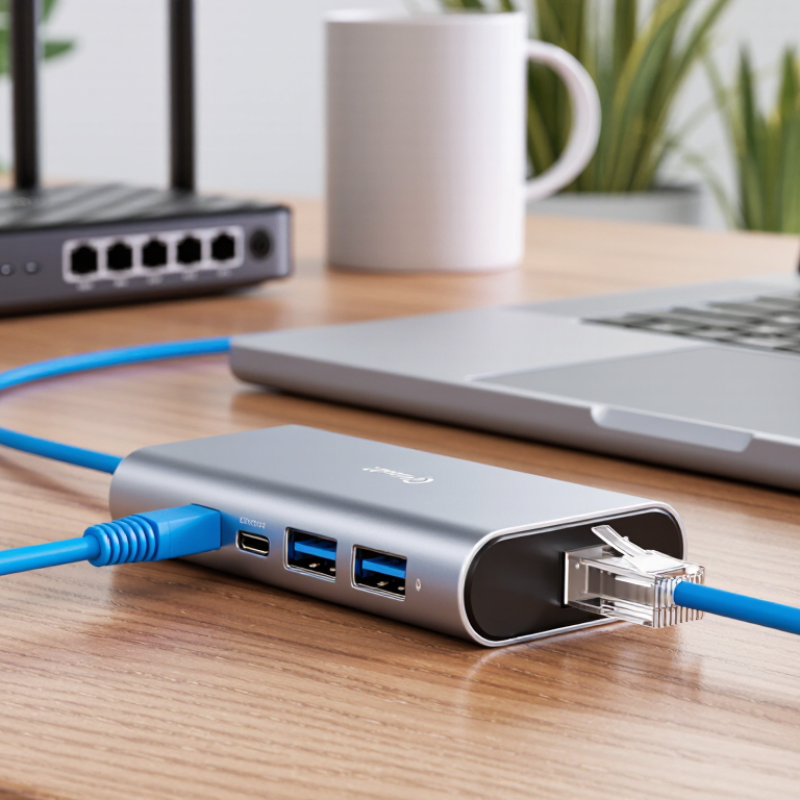
7 Tips to Choose the Best USB to Network Cable?
A USB-to-network cable is usually a USB Ethernet adapter, not a simple passive cable. Start by checking both connectors: USB-A or USB-C on one side, and RJ45 on the other. The USB logo alone proves little. USB 2.0 supports up to 480 Mbps, while USB 3.2 Gen 1 reaches 5 Gbps, according to USB-IF specifications. Match the adapter with your computer’s port. A fast adapter cannot create faster hardware.
Check the network standard, operating-system support, and required driver before buying. IEEE 802.3 defines 1000BASE-T Gigabit Ethernet at 1 Gbps, but real speeds depend on the router, cable, and network load. ITU’s Facts and Figures 2023 estimated that 5.4 billion people were online, representing 67% of the global population. Reliable wired access matters more as connected work expands. Look for full-duplex operation, automatic speed negotiation, and support for current operating systems. Read the technical sheet carefully.
Power can be overlooked. Some compact adapters draw more power than a thin laptop port comfortably supplies. Check USB power requirements, especially when using hubs. Cable length also matters; avoid unnecessary extensions near power cables. I once trusted a matching connector and ignored the driver list. It failed during a meeting. Compatibility is not always neat. Test the adapter with your actual router, port, and operating system before discarding the packaging.
| Tip | USB-to-Network Type | USB Interface | Typical Ethernet Speed | Connector Options | Compatibility Considerations | Best Use |
|---|---|---|---|---|---|---|
| 1 | USB 2.0 to Fast Ethernet adapter | USB 2.0, up to 480 Mbps theoretical bus speed | 10/100 Mbps | USB-A or Micro-USB to RJ45 | Usually suitable for older computers and embedded devices; actual throughput is lower than the USB link rate. | Basic internet access, office work, printers, and legacy equipment |
| 2 | USB 3.x to Gigabit Ethernet adapter | USB 3.0, USB 3.1, or USB 3.2; up to 5 Gbps for common USB 3.0 implementations | 10/100/1000 Mbps | USB-A or USB-C to RJ45 | A USB 3.x port is recommended for Gigabit performance; connecting to USB 2.0 may limit speed. | Large downloads, video streaming, file transfers, and general home or office networking |
| 3 | USB-C to Gigabit Ethernet adapter | USB-C, commonly USB 3.x or USB4-compatible depending on the device | Up to 1 Gbps | USB-C to RJ45 | Check whether the USB-C port supports data; some USB-C ports are limited or designed primarily for charging. | Thin laptops, tablets, and devices without a built-in Ethernet port |
| 4 | USB 3.x to 2.5 Gigabit Ethernet adapter | USB 3.x, typically requiring a high-speed USB data connection | 10/100/1000/2500 Mbps | USB-A or USB-C to RJ45 | The computer, adapter, Ethernet cable, switch, and network service must all support 2.5 Gbps to reach the highest speed. | High-speed local file sharing, network storage, and multi-gigabit internet plans |
| 5 | USB-C multiport network adapter | USB-C, often USB 3.x or USB4 depending on the model | Usually 1 Gbps; some models support 2.5 Gbps | USB-C, RJ45, HDMI, USB-A, and sometimes card-reader ports | Total bandwidth may be shared among ports; confirm power-delivery support and the required video standard. | Desk setups, travel, presentations, and laptops with few physical ports |
| 6 | Powered USB-to-Ethernet adapter or dock | USB-A or USB-C with external power support | Typically 1 Gbps or 2.5 Gbps | USB connection, RJ45, and a separate power input | Useful when the host port cannot provide sufficient power for multiple peripherals or stable operation. | Permanent workstations, docks, and setups with several connected devices |
| 7 | Rugged or extended-temperature USB-to-Ethernet adapter | USB 2.0 or USB 3.x, selected according to required speed | 10/100 Mbps to 1 Gbps, depending on the interface | USB-A, USB-C, and RJ45; some include locking or reinforced connectors | Check operating-temperature range, enclosure rating, cable strain relief, driver support, and installation requirements. | Industrial computers, field service, laboratories, and demanding environments |
Usually, it is an adapter with electronics inside. It converts a USB connection into an RJ45 network connection.
Check whether your computer has a USB-A or USB-C port. USB 2.0 supports up to 480 Mbps, while newer standards support higher speeds. A fast adapter cannot improve a slower computer port.
A Gigabit adapter can support up to 1 Gbps under suitable conditions. Actual speed depends on the router, network cable, computer, and network traffic. Labels can exaggerate.
The adapter needs compatible drivers for the operating system. Check support for current 32-bit and 64-bit systems, kernel versions, and automatic updates. Do not trust “plug and play” alone.
Review supported speeds, duplex modes, energy features, and chipset revisions. Two identical-looking adapters may behave differently after sleep mode. The casing tells little.
Some adapters draw more power than a thin laptop port can comfortably provide. Check power requirements before using an unpowered hub. Heat matters.
Connect it to your actual router, network cable, port, and operating system. Check link negotiation, packet loss, wake behavior, and sustained throughput. Test it early.
A missing or unsuitable driver may look like a faulty router or switch. Try another driver and operating system before replacing hardware. I once blamed the network device first. That was wrong.
Choosing the right Usb To Network Cable requires more than simply matching a connector. First, identify whether you need a USB-A or USB-C connection and confirm that it supports your computer, router, switch, or other network equipment. Check the USB standard, Ethernet speed, and available ports to ensure the adapter can deliver the performance you expect. A faster network connection may be limited by an older USB interface or an unsuitable port.
Next, evaluate the internal chipset, driver availability, and compatibility with your operating system, including support for future updates. Build quality, cable flexibility, power requirements, and practical features such as compact size or status indicators can also affect everyday use. Finally, review reliability, warranty coverage, user support, and total value rather than choosing solely by price. A dependable Usb To Network Cable should provide stable connectivity, efficient performance, and long-term convenience for your specific setup.

 Taitron Electronics