2026 Best Display Cable Types for 4K Monitors

Time:2026-11-22 Author:Madeline
0%

A 4K monitor can look crisp on a desk and still deliver a disappointing image when its connection cannot carry the needed signal. The right Display Cable depends on resolution, refresh rate, color depth, and the ports on both devices. A cable’s connector shape alone proves little. Check the monitor specifications, graphics-card output, and supported bandwidth before buying.

VESA executive director Bill Lempesis is a relevant industry authority on display-interface standards. I could not verify a direct quotation from him on choosing 4K cables, so I won’t invent one. Instead, this guide uses a clearly editorial rule: “Match the cable to the complete signal path, not just the plug.” That distinction matters. DisplayPort and HDMI can both support 4K, but support varies by version and device. USB-C may carry video through DisplayPort Alt Mode, though not every USB-C port does. Read the fine print. A cable labeled “4K” may not support your target refresh rate or HDR settings. For example, a 4K monitor running at 144 Hz places different demands on the connection than one used at 60 Hz. We’ll compare cable types, explain the specifications that matter, and flag common compatibility traps. There is no universal winner. Even experienced buyers can miss a port limitation. Check twice before checkout.
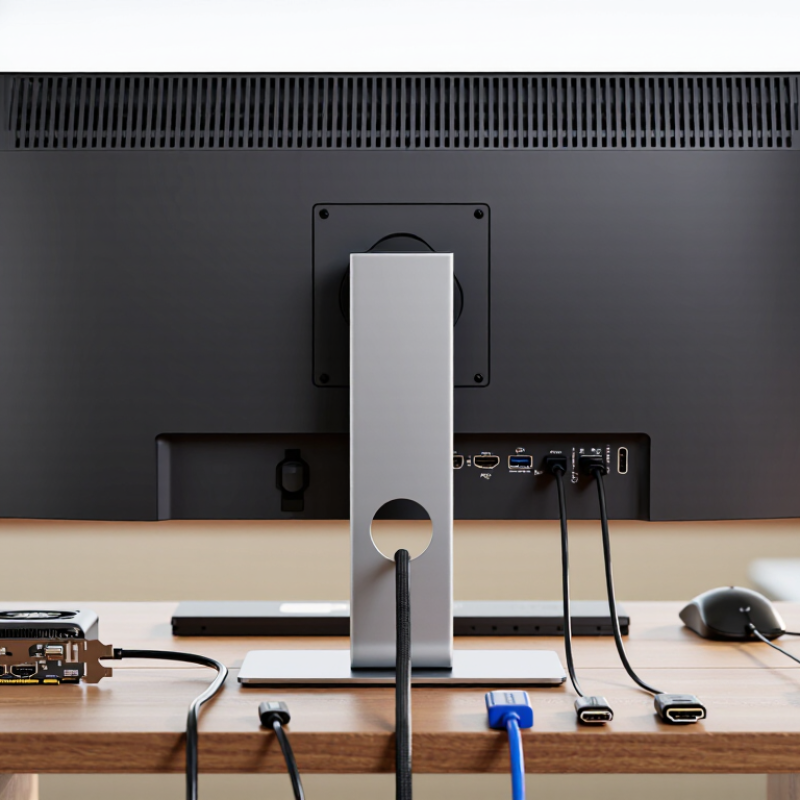
2026 Best Display Cable Types for 4K Monitors

What a Display Cable Does in a 4K Monitor Setup

A display cable carries the picture signal from a computer or console to a 4K monitor. It carries the signal. Depending on the connection, it can also transmit audio and other data. The cable does not create extra image detail; the source and monitor determine what can be displayed. For a 4K setup, the cable must support the bandwidth needed for the chosen resolution, refresh rate, and color settings. A 4K image at 60 Hz is less demanding than 4K at 120 Hz. The monitor’s input and the source device’s output must support those settings too. A USB-C plug alone does not guarantee video support.

When choosing a cable, check the specifications for both devices, then match them to the cable’s stated capabilities. A loose fit or damaged connector can cause flickering, blank screens, or brief signal dropouts. Very long cable runs may also need a cable designed for that distance. It is easy to blame the cable when a picture looks wrong, but the display settings, adapter, or graphics output may be responsible. I would check those links one at a time. That can feel tedious. Still, it helps identify the actual limit instead of buying a cable that cannot solve the problem.

Which Cable Specifications Affect 4K Performance

For a 4K monitor, resolution is only part of the story. Refresh rate, color depth, and chroma format determine how much data the cable must carry. A 4K image at 60Hz can work over a lower-bandwidth connection than 4K at 120Hz, especially with 10-bit color enabled. Bandwidth is the limit. Check the cable’s certified data rate, not just the connector shape or a vague “4K” label.

The display and graphics output must support the same signal settings. A high-bandwidth cable cannot make a 60Hz port deliver 120Hz. HDMI and DisplayPort specifications describe different capabilities, so compare the exact port and cable requirements in your device manuals. HDR and full RGB color can also increase bandwidth needs. Chroma subsampling may reduce the data load, but small text can look less crisp.

Cable length and build quality matter in practice. A short cable usually has fewer signal problems; long runs may need a cable rated for the required bandwidth. Length matters, too. I have seen people blame a monitor when the real issue was a cable that handled 4K at 60Hz but failed at a higher refresh rate. Even so, cable labels can be confusing, and checking the full specification is worth the extra minute.

How HDMI, DisplayPort, USB-C, and Thunderbolt Compare

For a 4K monitor, the cable choice depends on refresh rate, color depth, and the devices at both ends. HDMI 2.1 supports up to 48 Gbps, according to HDMI Forum specifications, making it a practical option for many 4K displays. DisplayPort 2.1 reaches up to 80 Gbps with UHBR20 signaling, as specified by VESA. That higher ceiling can help with demanding refresh rates, but only when the monitor, source, and cable all support the required mode. The label alone is not enough.

USB-C is a connector, not a guarantee of video capability. A USB-C port may carry DisplayPort video, USB4, or Thunderbolt, depending on the device. Check the port’s specifications. USB-IF’s USB4 Version 2.0 specification allows up to 80 Gbps, with an optional asymmetric mode reaching 120 Gbps in one direction. Thunderbolt 5 also specifies 80 Gbps bidirectional bandwidth and up to 120 Gbps for display traffic in its bandwidth-boost mode. These figures describe interfaces, not a promise that every 4K setup will reach its maximum refresh rate. A short cable behind a desk may work perfectly, while a longer one can expose compatibility limits. Honestly, port icons and product listings can still be confusing; verify the supported resolution and refresh rate before buying.

2026 Best Display Cable Types for 4K Monitors — How HDMI, DisplayPort, USB-C, and Thunderbolt Compare
Connection Type Maximum Link Bandwidth Typical 4K Capability Key Advantages Important Considerations
HDMI 2.0 18 Gbit/s Commonly supports 4K at 60 Hz with 8-bit RGB or YCbCr 4:4:4. Widely available on monitors, televisions, computers, and game systems. Generally not the best choice for 4K refresh rates above 60 Hz at full color quality.
HDMI 2.1 Up to 48 Gbit/s Commonly supports 4K at 120 Hz; higher refresh rates depend on the display, source, color settings, and use of compression. High bandwidth and broad support for modern high-refresh-rate displays and consumer electronics. Confirm that both devices and the cable support the required HDMI features and bandwidth. Capabilities vary by device.
DisplayPort 1.4 Up to 32.4 Gbit/s raw link rate 4K at 60 Hz is a common uncompressed mode. 4K at 120 Hz typically requires Display Stream Compression (DSC) or adjusted settings. A strong option for computer monitors, with support for high refresh rates and multi-display features on compatible systems. Usable video bandwidth is lower than the raw link rate. High-resolution, high-refresh modes may rely on DSC.
DisplayPort 2.1 Up to 80 Gbit/s raw link rate with UHBR20 Can support demanding 4K high-refresh modes, including up to 240 Hz on compatible equipment and settings. Offers substantial bandwidth headroom for high refresh rates, high color depth, and advanced display configurations. Maximum performance requires compatible source hardware, monitor, and cable. Not all DisplayPort 2.1 devices support the same link rate.
USB-C with DisplayPort Alt Mode Varies with the DisplayPort version and lane configuration May support 4K at 60 Hz or higher; performance depends on the DisplayPort capability and how the USB-C connection allocates lanes. One reversible connector can carry video and, on supported devices, USB data and power. USB-C describes the connector, not a guaranteed video standard. Check for DisplayPort Alt Mode support and the required bandwidth.
Thunderbolt 4 Up to 40 Gbit/s total connection bandwidth Can carry DisplayPort video; supported 4K resolutions and refresh rates depend on the computer, display, and available display streams. Combines high-speed data, display connections, and docking through one cable; supports demanding multi-display setups on compatible systems. The total bandwidth is shared across tunneled data and display traffic. It is not dedicated solely to video.
Thunderbolt 5 Up to 80 Gbit/s bidirectional, with bandwidth boost up to 120 Gbit/s in one direction Designed for high-resolution, high-refresh-rate displays; actual 4K performance depends on the device and tunneled DisplayPort capabilities. Provides more bandwidth headroom for advanced displays, docks, and other high-speed peripherals. Bandwidth boost is directional and use-dependent. Verify that the computer, display, dock, and cable support the required features.
How to choose: For a 4K 60 Hz monitor, HDMI 2.0, HDMI 2.1, and suitable DisplayPort connections are commonly sufficient. For 4K at 120 Hz or higher, check the complete signal path—including the computer or graphics hardware, monitor input, cable, refresh rate, color depth, and whether DSC is required. 4K refers to 3840 × 2160 pixels; listed capabilities are not guaranteed for every device or cable.

How to Match a Cable to Your Monitor and Graphics Card

A 4K cable must match the ports and video mode supported by both your monitor and graphics card. Check the exact port version, then compare the monitor’s resolution, refresh rate, and HDR requirements. A 4K display at 60 Hz may work over several connection types, while higher refresh rates can require more bandwidth. VESA’s DisplayPort 2.1 specification lists bandwidth up to 80 Gbps; the HDMI 2.1 specification allows up to 48 Gbps. These are maximum link rates, not guarantees that every device supports every mode.

Check both ends. A graphics card may have a newer port than the monitor, or the reverse; the connection generally follows the more limited device. Read the manuals for supported resolution and refresh-rate combinations, especially when using HDR or a long cable. I still find port labels easy to misread, so checking the device specifications is worth the extra minute. A higher-rated cable cannot create features the hardware lacks.

Tips: Match the cable’s certified bandwidth to your target mode, and keep it short enough for a reliable signal. For 4K at high refresh rates, confirm the exact timing support in both device manuals. If the screen flickers, drops signal, or limits refresh rate, test another suitable cable before changing display settings.

How to Check Resolution, Refresh Rate, and Compatibility

Before buying a cable, check the monitor’s native resolution and target refresh rate. A 4K screen may support 60 Hz, 120 Hz, or more, depending on its model and input port. Read the monitor manual and the computer’s display specifications. The cable must carry the signal those devices support; a newer cable alone cannot unlock a higher refresh rate.

Check every link. Look at the graphics output, cable type, and monitor input. HDMI, DisplayPort, and USB-C can all carry 4K video, but capabilities vary by port version and device. For USB-C, confirm that the specific port supports video output. A charging-capable port may not. Also check whether the stated 4K refresh rate requires settings such as reduced color depth or Display Stream Compression. Spec sheets can be oddly vague here.

After connecting the cable, open the operating system’s display settings and select the monitor’s native resolution and intended refresh rate. If the option is missing, try another port, update the display driver, or check the monitor’s on-screen input settings. Keep the cable short and undamaged where practical. I’ve found that swapping cables can help isolate a problem, but it is not proof that the original cable was faulty. The port or setting may have been the real issue.

2026 Best Display Cable Types for 4K Monitors — How to Check Resolution, Refresh Rate, and Compatibility

These figures show each interface standard’s maximum rated link bandwidth, not a guaranteed 4K refresh rate. Actual resolution and refresh rate depend on the monitor and graphics-card ports, the specific cable, color depth, chroma format, and features such as Display Stream Compression (DSC). Check the specifications for both devices and use a cable rated for the required standard.

FAQS

What does a display cable do in a 4K setup?

It carries the picture signal from your computer or console to the monitor. Some connections also carry audio and other data. The cable does not add image detail.

Can any cable deliver 4K at 120 Hz?

No. The source, monitor ports, and cable must all support that resolution and refresh rate. A 4K image at 120 Hz needs more bandwidth than one at 60 Hz.

Does a USB-C connector always support video?

No. USB-C describes the connector shape, not its full capabilities. Check whether that specific device port supports video output. Some ports only handle charging or data.

What should I check before buying a cable?

Check the monitor’s native resolution and target refresh rate. Then compare the computer’s output, monitor’s input, and cable specifications. Product details can be vague.

Why does my 4K monitor flicker or go blank?

A loose or damaged connector can interrupt the signal. Long cable runs may also cause trouble. Check the plugs and try a shorter cable if possible.

What can I try if 120 Hz is missing?

Confirm that both devices and their selected ports support 120 Hz. Check the operating system’s display settings and the monitor’s input settings. Try another port.

Will a newer cable automatically increase refresh rate?

No. A newer cable cannot overcome a limit in the computer or monitor. Annoying, but true.

How can I tell whether the cable is the problem?

Swap in a known-compatible cable and test the same settings. If the picture improves, the original cable may be involved. That is not proof; a port or setting could also be responsible.

Conclusion

Choosing the right Display Cable is essential for getting the most from a 4K monitor. A cable carries video and, in some setups, audio or data, while its supported bandwidth determines which resolutions, refresh rates, and color features can work reliably. HDMI, DisplayPort, USB-C, and Thunderbolt each offer different capabilities, so the best option depends on the ports and specifications available on both the monitor and the graphics card. USB-C and Thunderbolt may also support data and power, but their capabilities vary by device.

Before buying or connecting a cable, compare the monitor’s requirements with the graphics card’s output and check the cable’s supported bandwidth and features. Confirm that the complete setup can deliver your intended resolution and refresh rate, and make sure the selected port is configured correctly. If the image is limited to a lower refresh rate or resolution, review the device settings, connection type, and cable compatibility.


Madeline

Madeline

Madeline is a dedicated marketing professional with a wealth of expertise in our company's core offerings. With a keen understanding of the industry, she brings a unique perspective to her role, consistently delivering high-quality content that highlights the superior aspects of our products. As......